Development setup
Missed Part 1? I covered password managers, browsers/search engines, and terminal tools. Here’s Part 2: the IDE saga.
Here’s what my VSCode looked like two weeks ago:
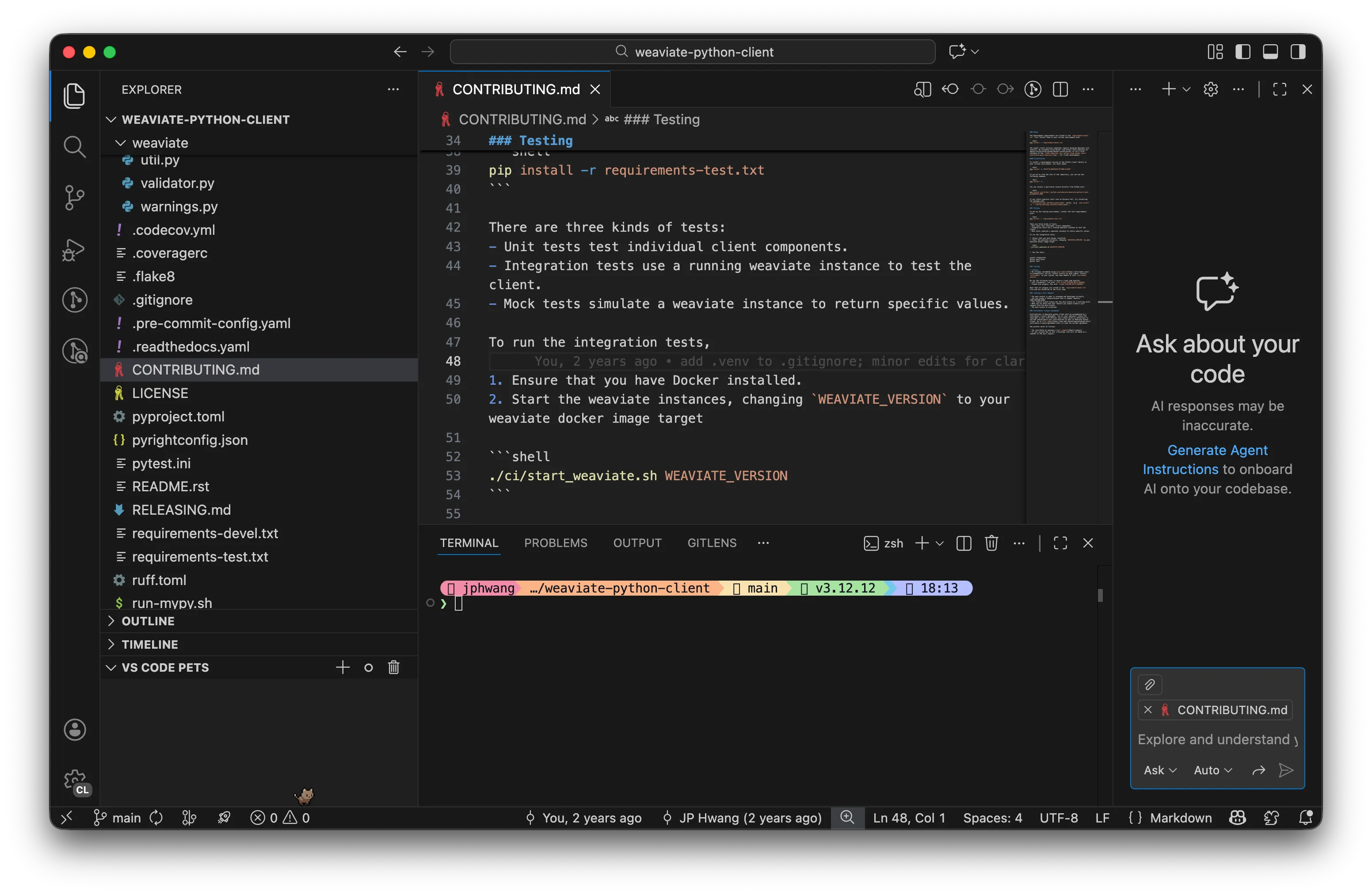
I count about 8 different areas in it, with its own set of controls and icons, and some of them like the left sidebar and the bottom bar with their own sub-menus. Well, you know the saying:

Enter Zed.
I joke that I’m a polyglot idiot. That is to say, I can code poorly in a wide array of languages.
My work involves writing docs, educating developers through talks & content, and occasionally making small contributions here and there. This requires me to look at a wide range of repos. As a result, I’ve been a VSCode guy.
But maybe there was a better way?
Zed promised to be “fast, intelligent & collaborative” with a refreshingly minimal interface. After a couple weeks of testing, here’s what I learned, and why I’m back in VSCode, but with a very different setup.
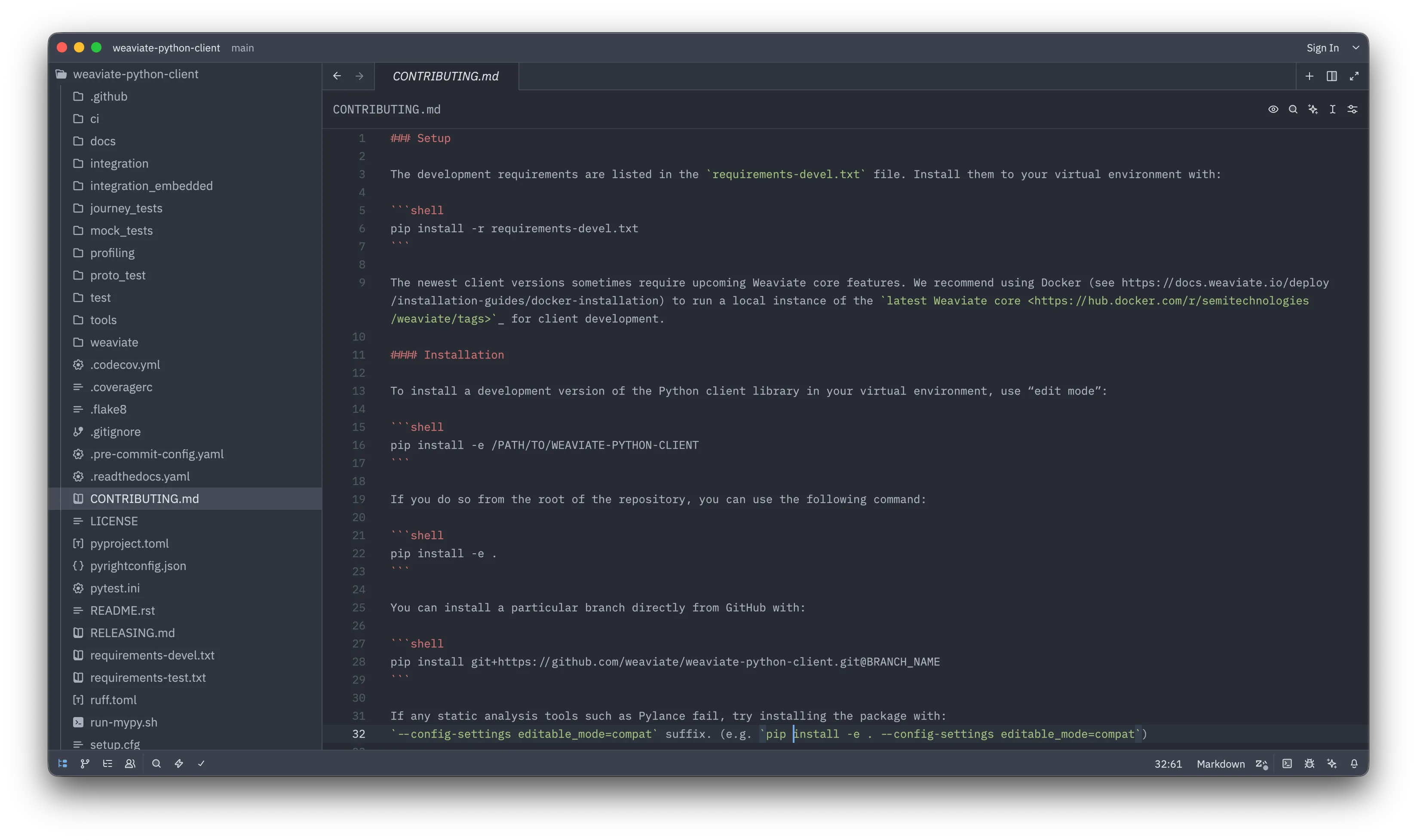
First impressions: I mentioned in the previous post that like many of us, I spend far too much time in front of a computer; and what I’m after is distraction-free, or at least, lower-distraction tooling. Well, Zed definitely looks the part.
Contrast that to VSCode’s default aesthetic (viewed in a new profile).
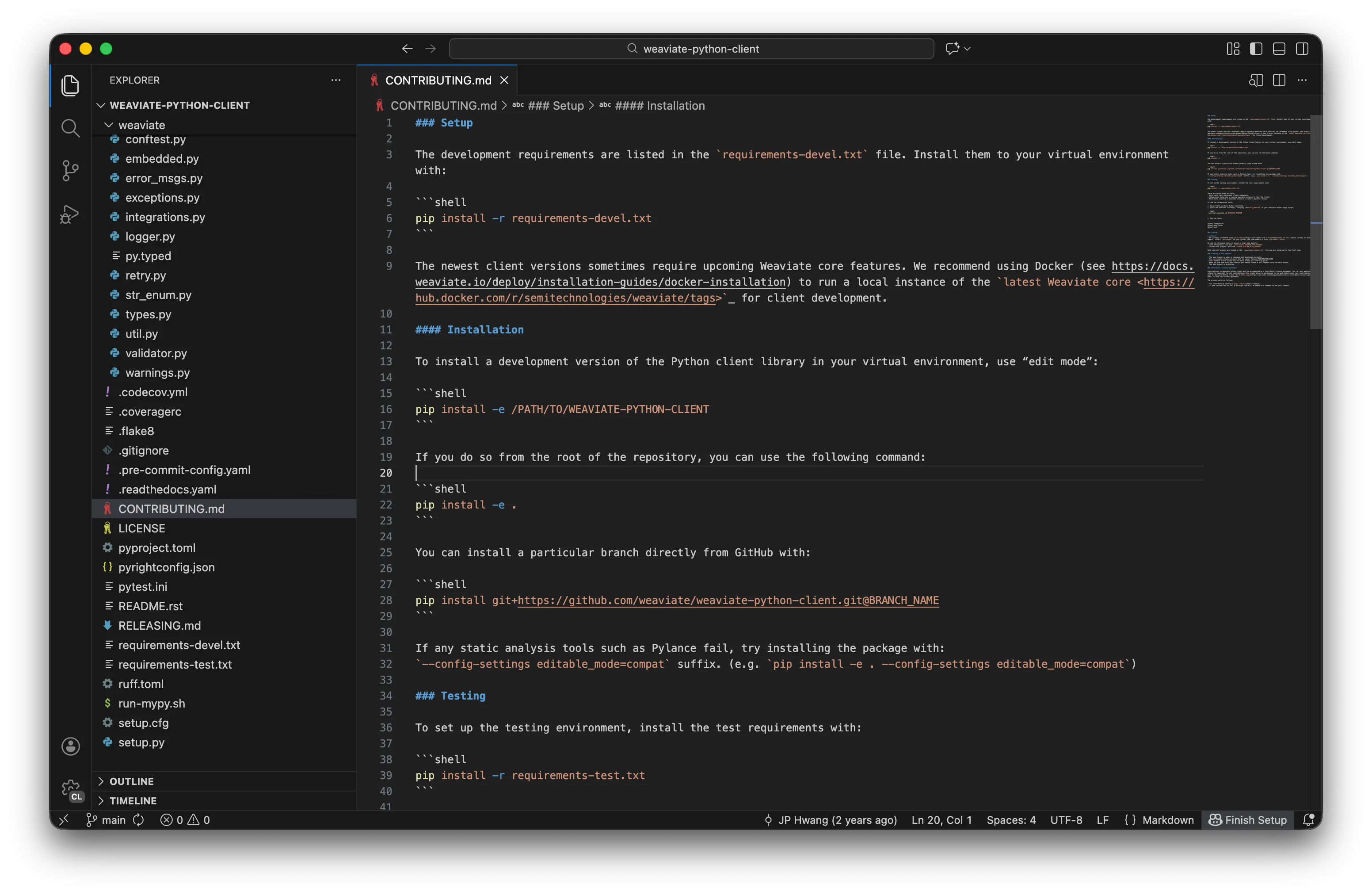
In contrast to VSCode’s default “anxious prepper readying for a trip” aesthetic, muted colours and three clusters of half dozen buttons or indicators of Zed just exudes calm and allows me to actually look at the code.
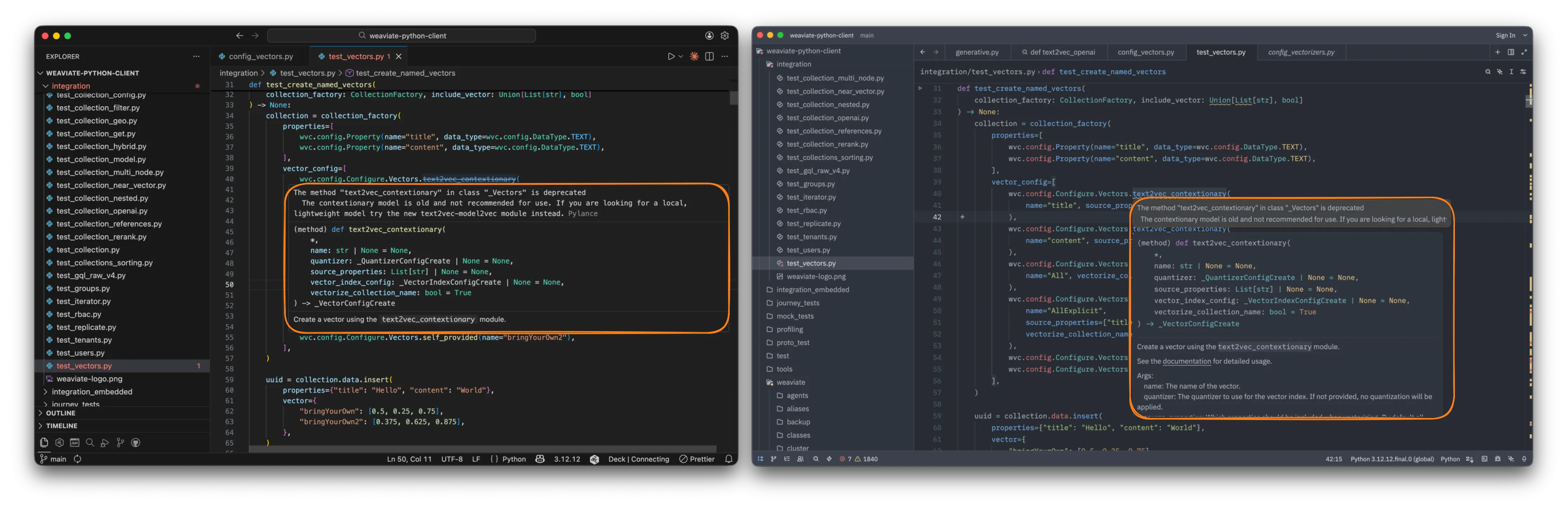
And to follow up, the editing experience doesn’t disappoint. The included language servers seem to work fine, although I was a little worried about it due to some historical online comments. Actually, I like little touches like how deprecation messages are shown.
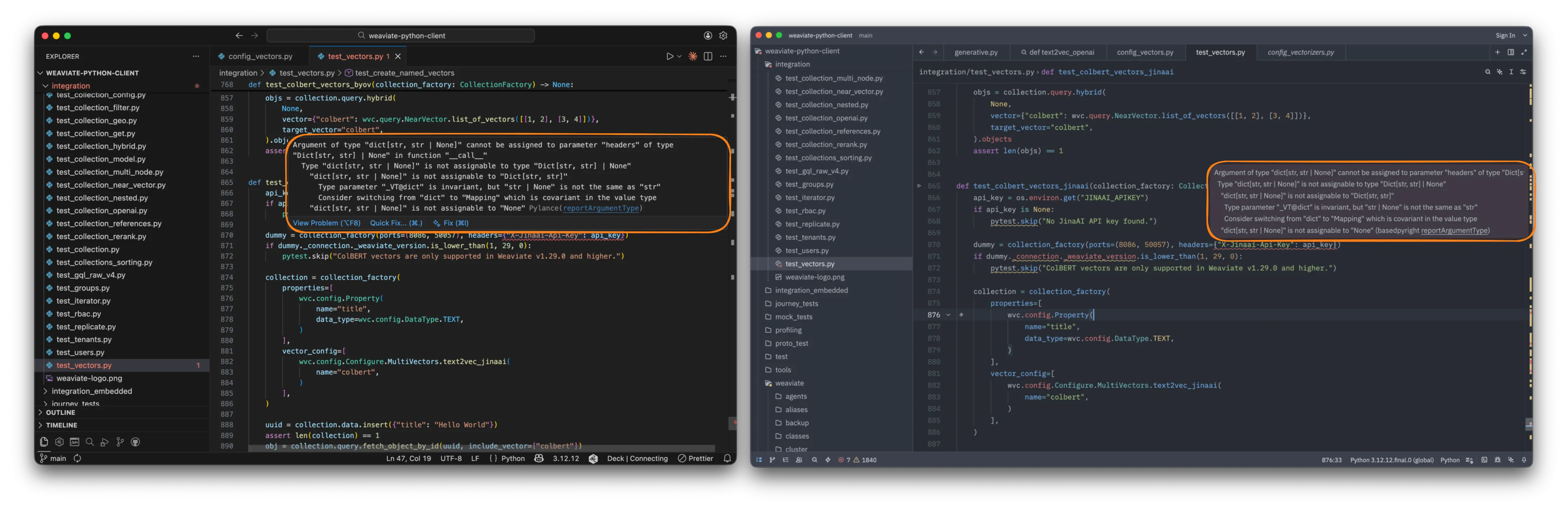
The same with error messages - the background colour here helps the text to stand out. You can probably take or leave the smaller ❌ symbol over the file icon in Zed, over VSCode’s more obtrusive, but clearer indication with the filename here.
Based on these first impressions, Zed could have been a viable candidate. But there’s some oddities for people like me coming from another tool.
Zed uses a concept of “toolchains” as the generic term for things like virtual environments. So instead of choosing a virtual environment or an interpreter, you “select a toolchain” like so.
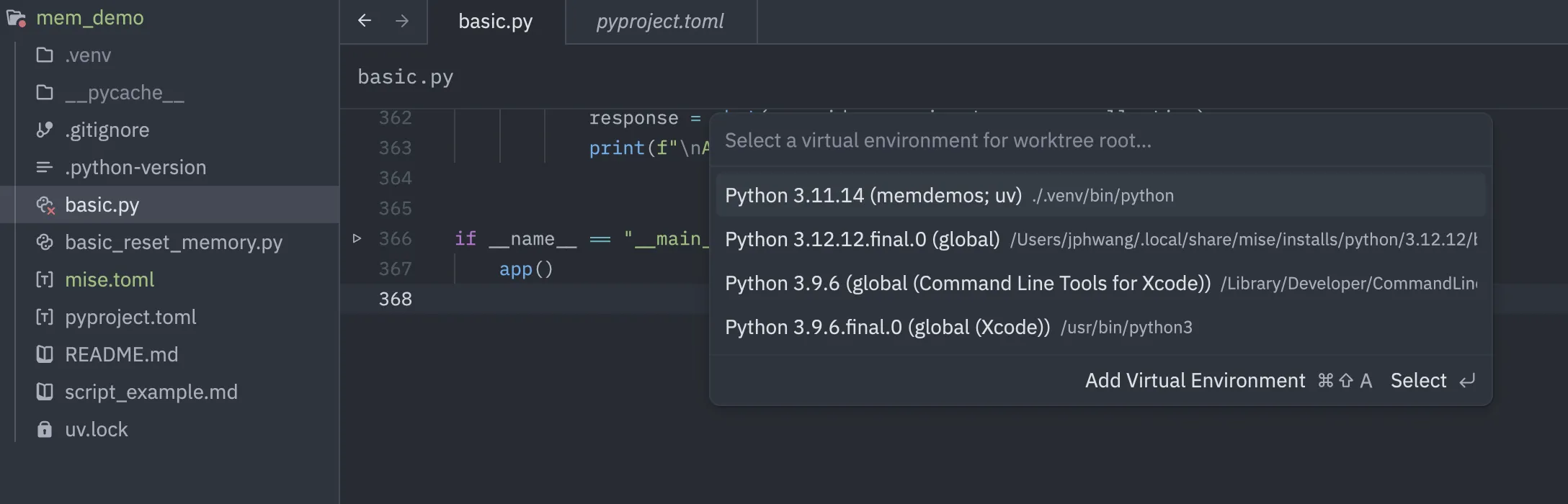
Other than the naming, it also has some rough edges. The announcement blog for this features states that Serialization in particular needs work. Today, your toolchain choice may or may not persist as expected.
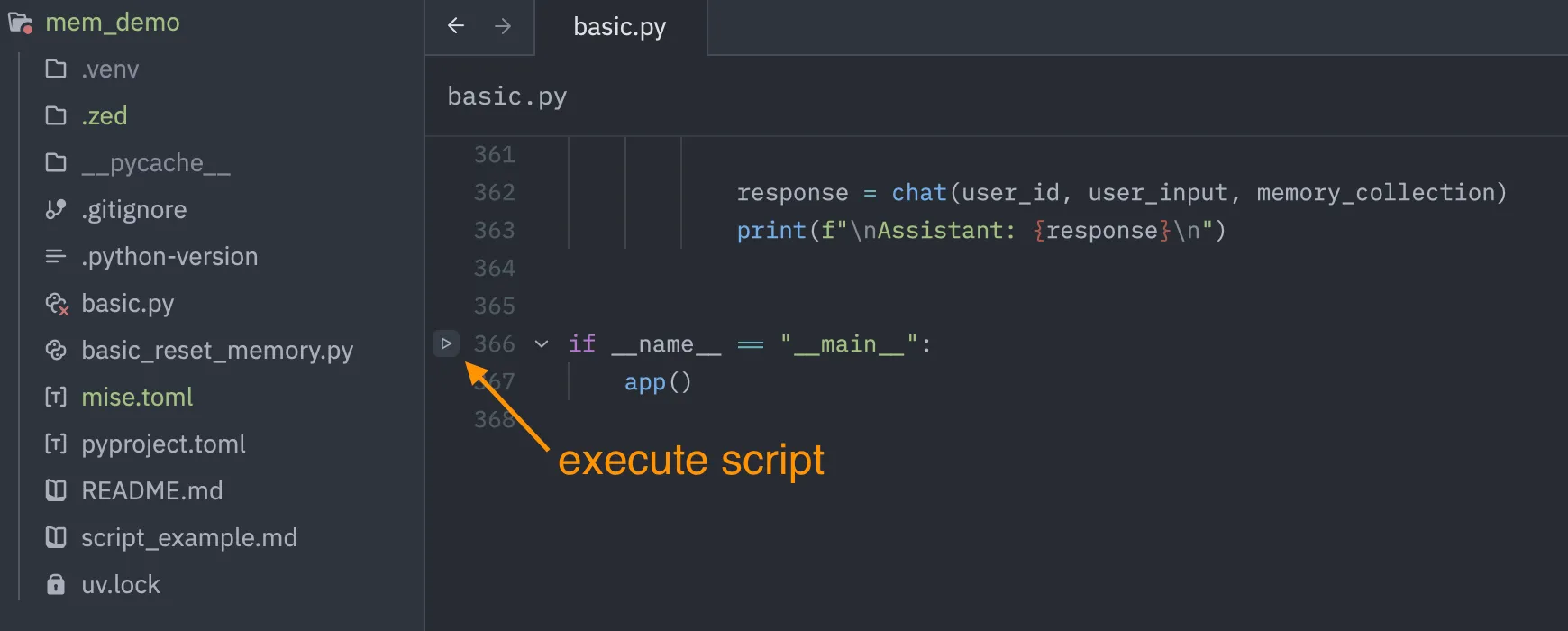
Then, executing a script from the IDE involves finding the button here, in if __name__ == "__main__":. Which, I find to be an odd choice. Locating the execution button at the main dunder check isn’t the most usable in my opinion. Why not have it in the top right corner like other IDEs?
And more than the oddities - there’s the problems.
I unfortunately discovered two fairly big problems with Zed. One is that there’s no Jupyter notebook support as of yet. There’s this discussion (with ~700 upvotes), and a promise of updates, but we’re not quite there yet.
They say it’s a priority, but it’s not clear when this will be added. As an educator, notebooks are a necessary evil, and unfortunately this means Zed cannot be my only IDE. I could use the standalone Jupyter tool through the browser, but it’s always been sluggish for me, especially with the language server, and I find myself a little frustrated. Also, it means I must have another tool.
This would have been okay, still. I’m willing to be in an open-IDE relationship.
The real problem with Zed (in mid January, 2026, for time-travellers among us) is its AI autocompletes. Or as I like to call it, the AI slow-completes.
Zed offers its own autocompletion engine (Zeta), as well as compatibility with GitHub Copilot, Supermaven and Codestral.
Unfortunately, the autocompletes were just painfully slow to the point of being almost unusable. It’s not just me either, as evidenced by this open GH issue, reporting about a ~3 second autocomplete suggestion. (I tried both Copilot and Zeta.)
Now, I don’t always use Copilot autocompletes, and yes, they are often very annoying. But they regularly save a tonne of time for the right kind of work. Unless Zed’s putting us through an AI Stanford marshmallow experiment, this isn’t going to fly.
So I’m back where I started. Instead of going to another editor, I’ve just made my peace (once again) with VSCode by customising it.
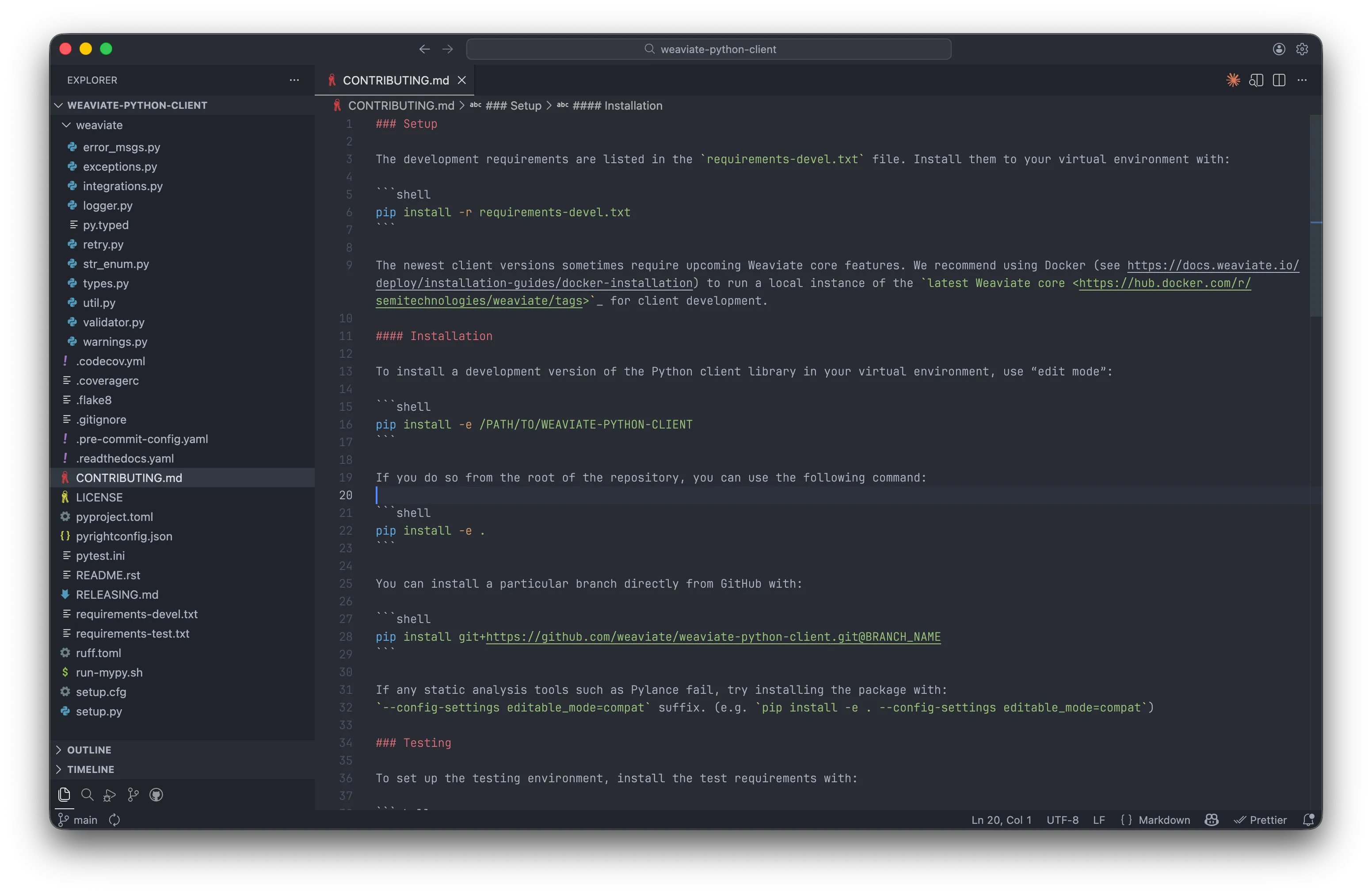
This is what my VSCode setup looks like now, inspired by Zed. I’ve changed the theme to One Dark Pro, turned off a bunch of unnecessary buttons and changed the font to JetBrains Mono Extralight. I also uninstalled a bunch of plugins that I’d previously had. I think the next time I’m coding in anything that’s not TS/Python, I would just use a dedicated JetBrains IDE.
One more thing. Zed’s minimalist approach taught me a valuable lesson: if I’m sticking with VSCode, I should apply that same “stay out of the way” principle everywhere. Which brings me to GitLens.
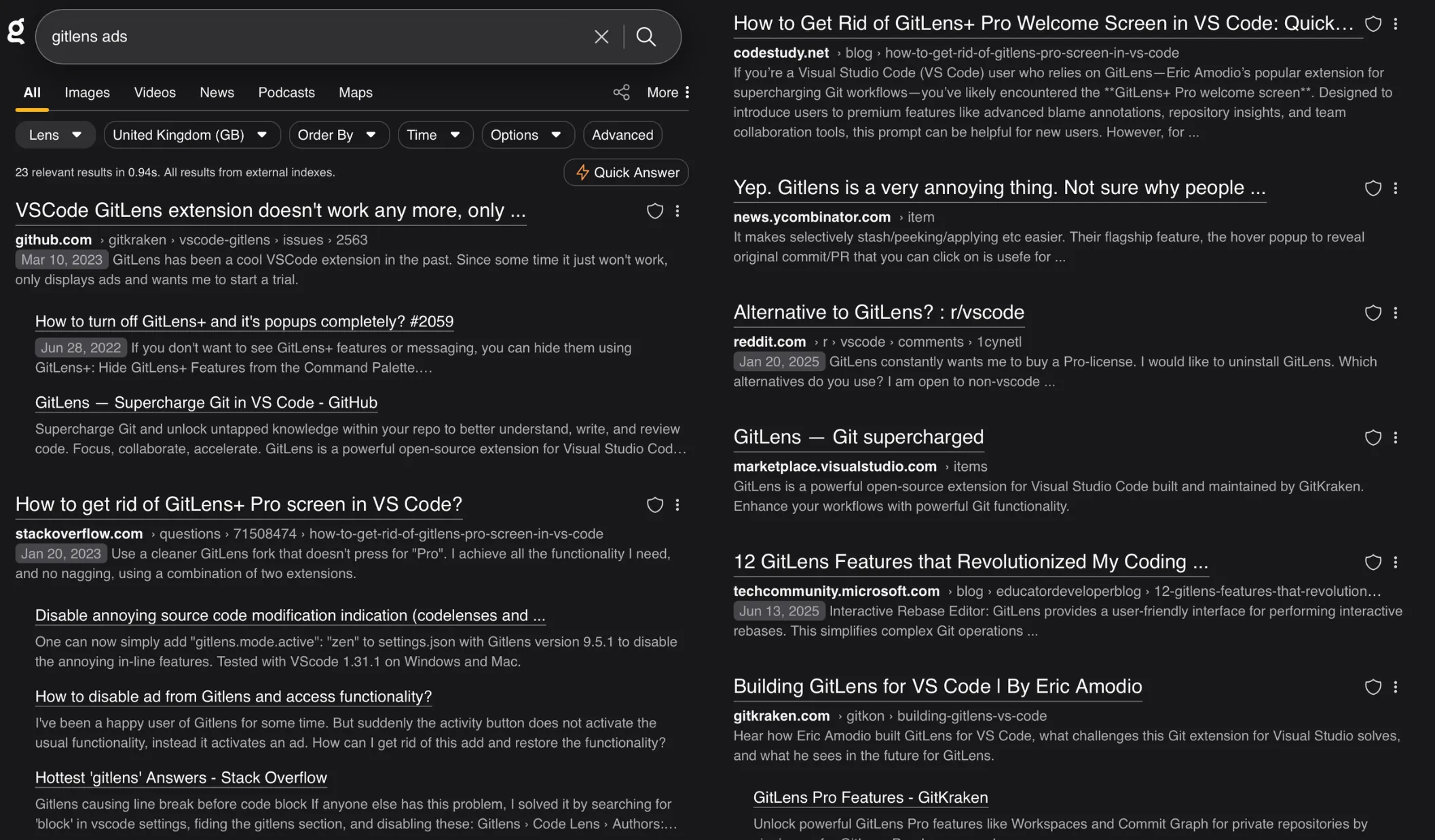
I know that software houses need to make money, but the ads have gotten pretty aggressive.
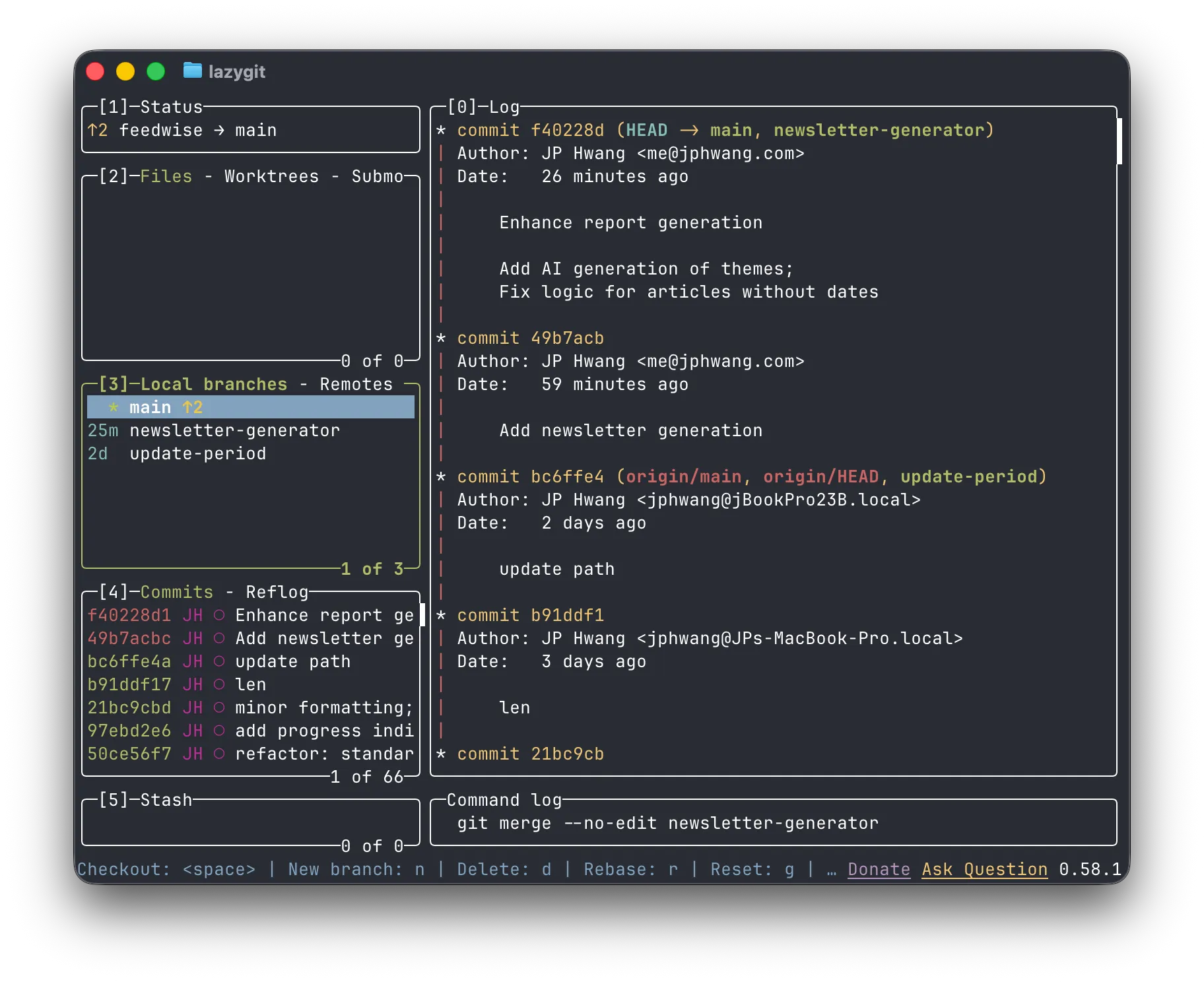
So instead, I’m going with lazygit for my git needs. And so far, so good. In many ways, it’s an improvement on GitLens. The interface is clean:
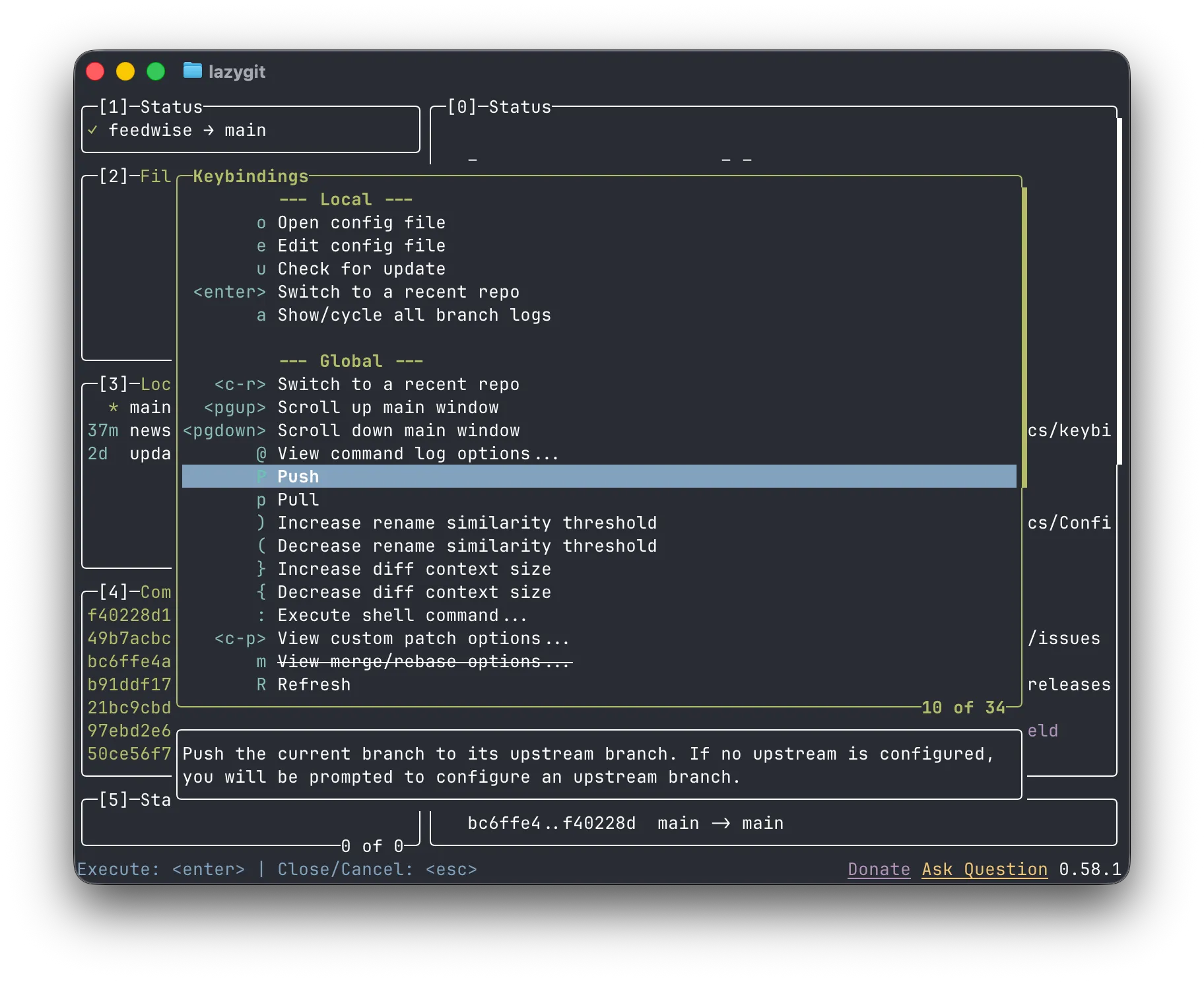
The keybindings let me speed up common operations:
And it provides decent-enough looking diffs, too - which to be fair, was I think mostly what I was using GitLens for.
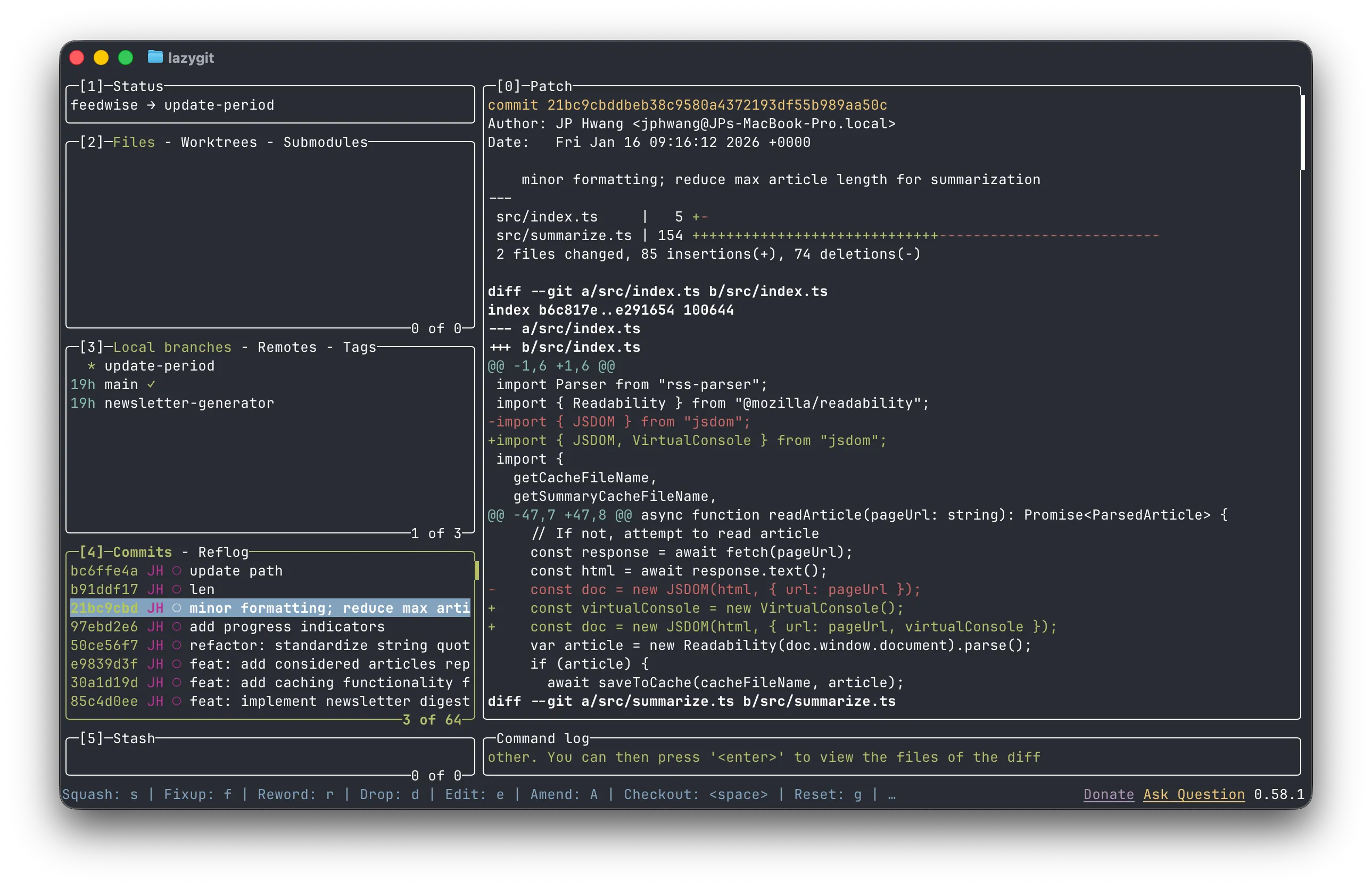
And in other cases, I was using GitHub desktop for reviewing longer PRs and such. Again, this is a case of horses for courses.
They say time is a flat circle. After a week or two of trying out new tooling with Zed, I’m back to the ole’ trusty VSCode. Was it a waste of time? Maybe, but also - maybe not. Trying out Zed helped me to realise how cluttered my IDE was. Screenshots of my VSCode setup doesn’t actually do justice to how it looked before I tried out Zed; the IDE’s periphery looked like the border of an ad-supported website; bright text and icons were screaming like little lambs in the night.
But no more. I’ve re-purposed VSCode in the image of calm. As a result, I think I’m much happier looking at my screen. One of my goals was to set up distraction-free, simplified tooling. While VSCode isn’t the ideal solution for that, it may be a better one than the alternatives right now. So far, my setup feels familiar and useful without overpowering.
Thanks for reading. In the next post, I’ll discuss version manager tools for languages (pyenv, nvm and such), agentic coding tools, and Spotlight/Raycast. See you then!
P.S.: If you installed Starship & the Catppuccin theme for your terminal, you’ll have to make a change to work in Zed & VSCode:
Install JetBrains Mono Nerd Font:
brew install --cask font-jetbrains-mono-nerd-fontThen, for Zed:
"terminal": {
  // "font_family": "MesloLGS NF"
  "font_family": "JetBrainsMono Nerd Font",
}
Or in VSCode add this to your settings.json:
"terminal.integrated.fontFamily": "JetBrainsMono Nerd Font"Or set it in the GUI settings:
And you should be good to go!
